
What is Library Management?
Library Management is where you add game folders for emulators or platforms that are not detected automatically. After adding a library, Killer Feature scans the folder, reads your games, organizes them, and attempts to match the correct cover art so they appear inside the Games tab.
Games Tab
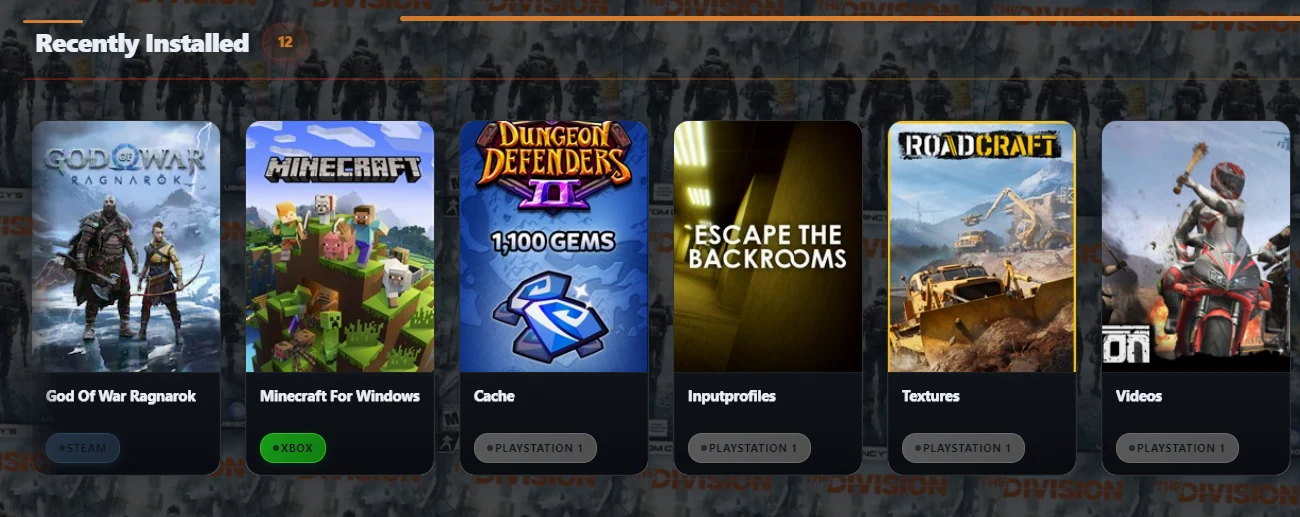
After the library is added successfully, your games appear inside the Games tab. You can find them in sections such as Recently Installed and All Games, depending on how your library is organized.
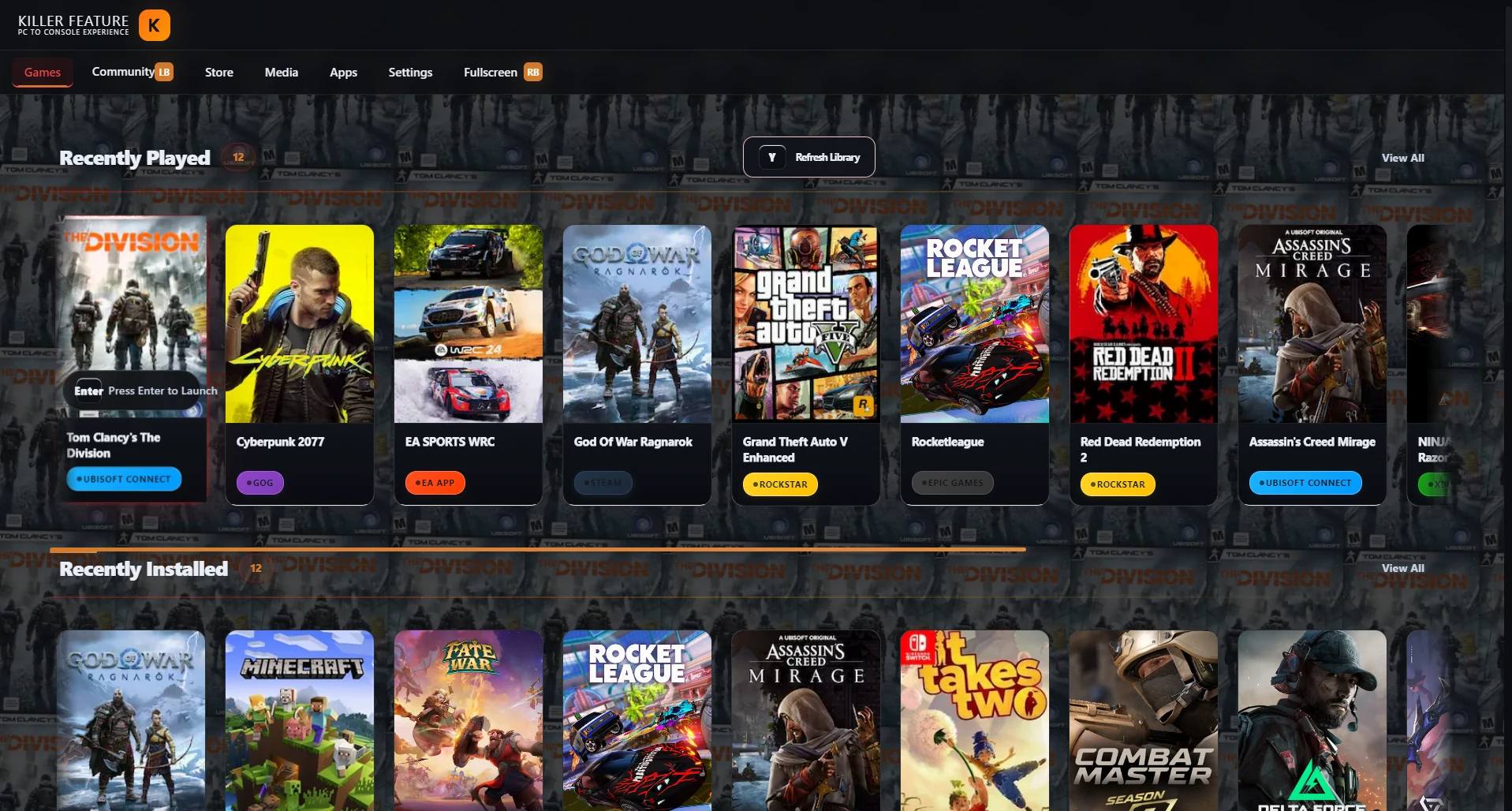
When do you need to add a library manually?
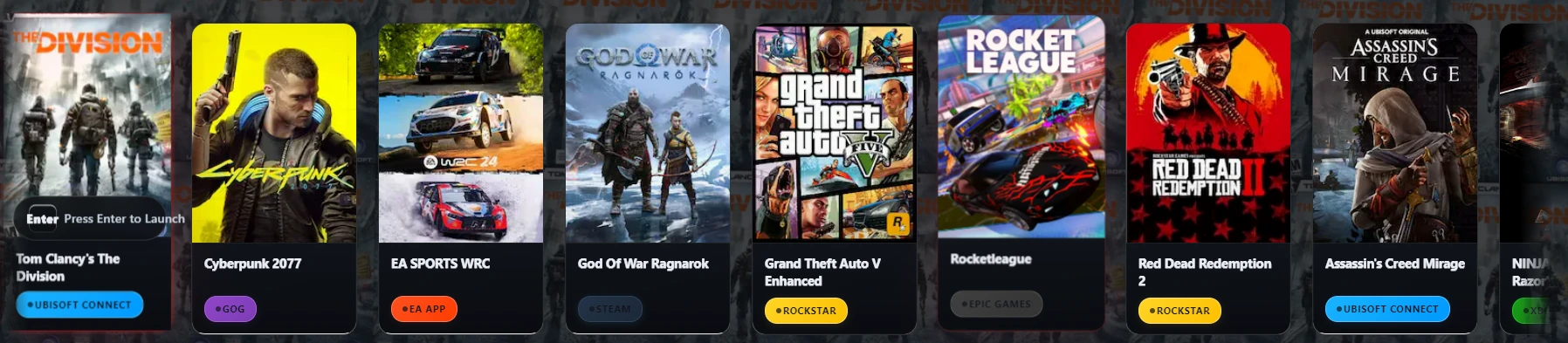
You need to add a library manually when your games are stored in a custom folder, when you use an emulator, or when the platform is not supported by automatic detection, such as some PlayStation, Xbox, Nintendo, or local PC game libraries.
- Steam
- Epic Games
- GOG
- EA App
- Rockstar Games
- Xbox Game Pass
- Ubisoft Connect
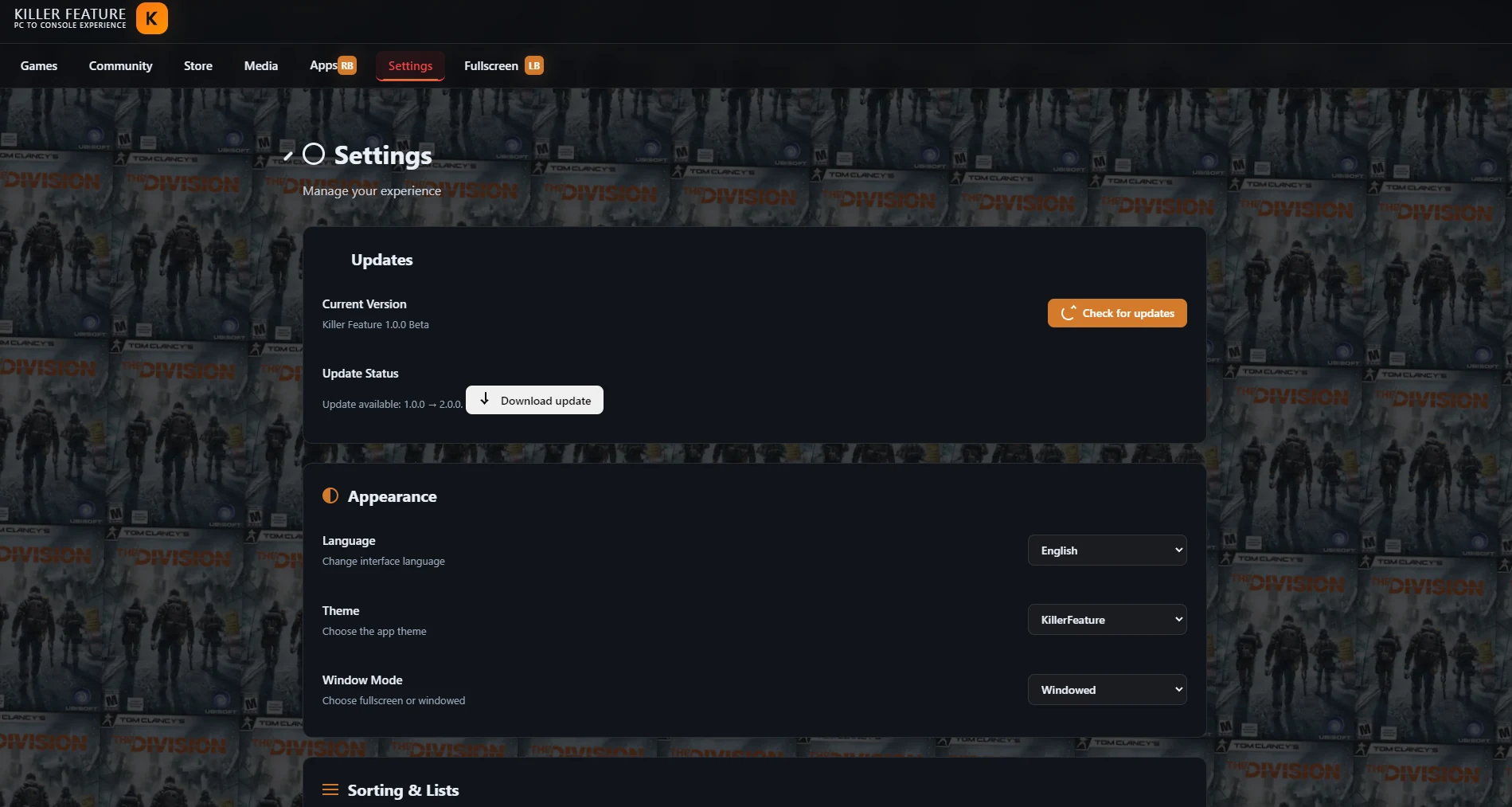
Open the Libraries Section
- Open Killer Feature.
- From the top navigation bar, go to the Settings tab.
- Scroll inside Settings until you reach the Libraries section.
- Click Add library to start adding a new library.
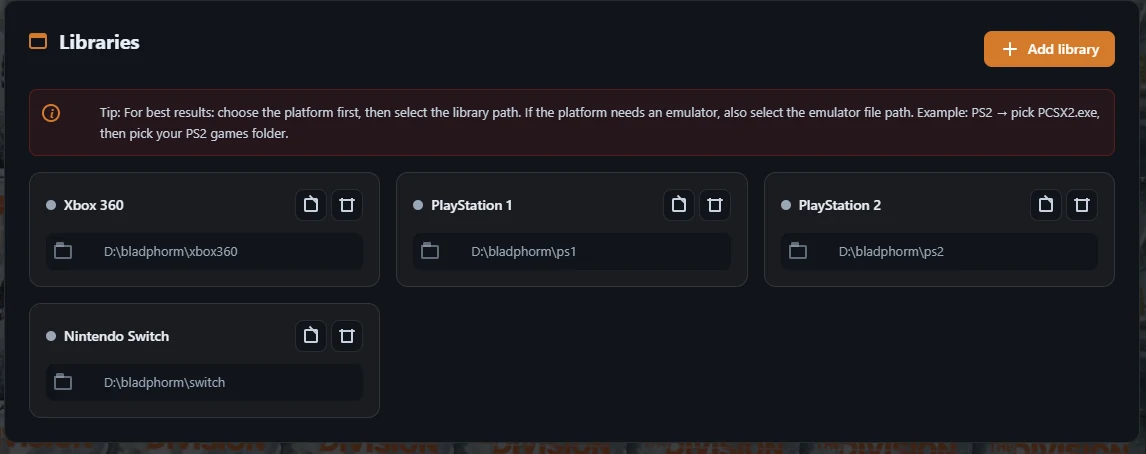
Libraries Section in Settings
Inside the Libraries section, you can view previously added libraries, add a new library, edit paths, or remove a library you no longer need.
Add a New Library
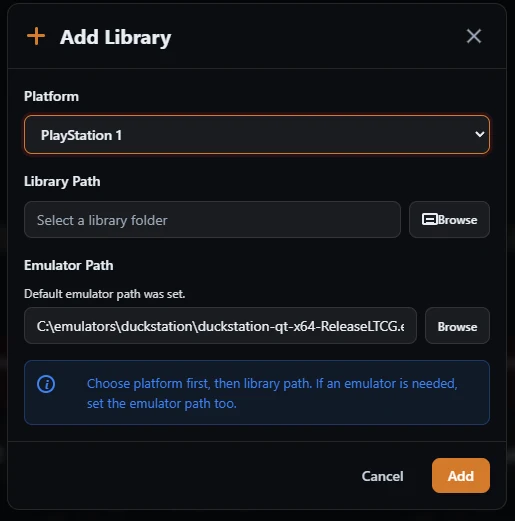
After clicking Add library, a dedicated window appears. From this window, choose the platform, select the game folder path, and add the emulator path if the selected platform requires an emulator.
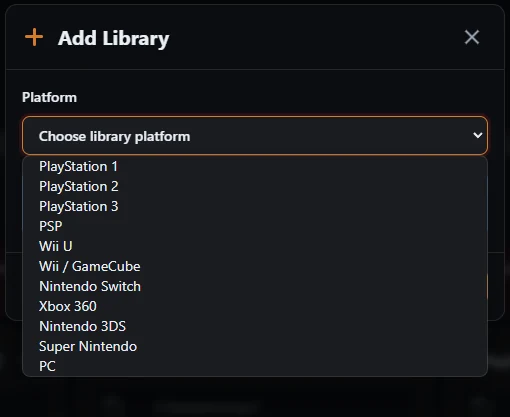
- Open the Platform dropdown and choose the correct platform for your library, such as PlayStation 1, PlayStation 2, Nintendo Switch, Xbox 360, or PC.
- Click Browse next to Library Path and select the folder that contains the games for this platform.
- If the platform requires an emulator, make sure Emulator Path is set. In some cases, Killer Feature fills the emulator path automatically.
- After choosing the folder and confirming the paths, click Add to add the library.
Choose the Platform and Library Paths
When the Add Library window opens, choose the platform first, then select the games folder from Library Path. If the platform requires an emulator, confirm the Emulator Path before clicking Add.
Emulator Path
When you choose a platform that requires an emulator, the emulator path may appear automatically if the emulator was installed from the Apps tab inside Killer Feature. If the path does not appear, you can manually select the emulator executable from your device.
Install Emulators from Inside the App
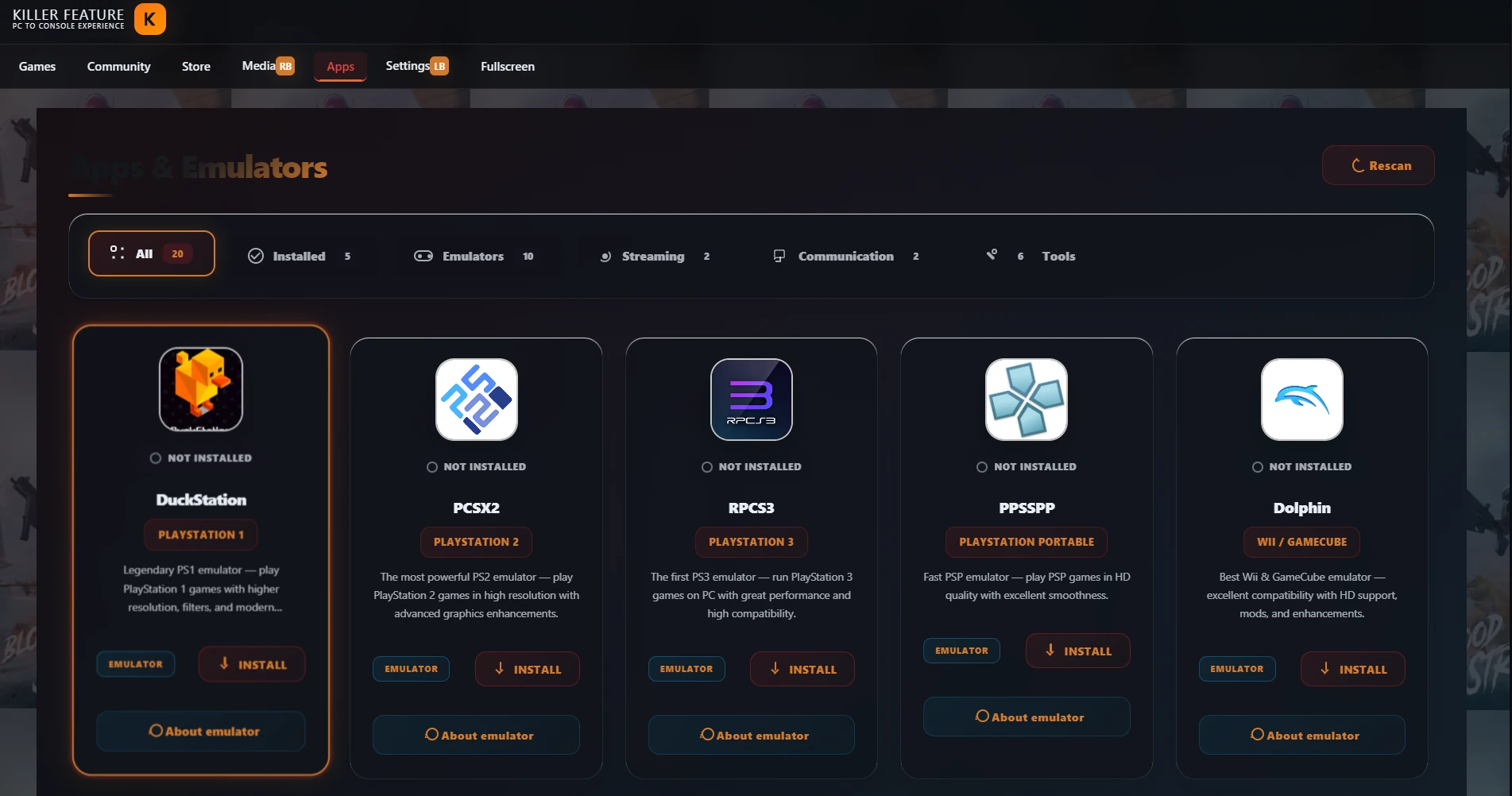
If the emulator is not installed on your device, go to the Apps & Emulators tab and install the correct emulator. After installation, return to Add Library and choose the platform again. The emulator path may appear automatically.
Choose the Games Folder
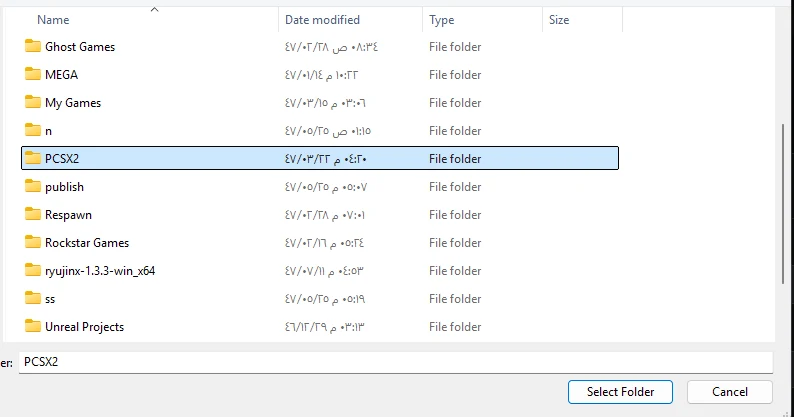
When you click Browse next to Library Path, a folder picker window appears. Choose the folder that contains only the games for the selected platform, then click Select Folder.
Confirm the Paths Before Adding
After choosing the games folder, make sure Library Path points to the correct folder. If the platform requires an emulator, also confirm Emulator Path, then click Add.

What Happens After Adding a Library?
After clicking Add, Killer Feature starts scanning the library automatically. It reads the folder contents, attempts to identify the games, and adds them to your game library inside the app.
- Wait until the library scan is complete.
- Go back to the Games tab.
- The new games will appear inside Recently Installed.
- They will also appear inside All Games with the platform badge you selected.
Games Appearing Inside the Games Tab
After adding and scanning the library, return to the Games tab. Your games will appear inside Recently Installed and All Games with the platform badge you selected.
Quick Example
If your PlayStation 1 games are inside a folder named PS1, choose PlayStation 1 from the Platform list, then click Browse next to Library Path and select the games folder. If DuckStation was installed from inside Killer Feature, the emulator path will often appear automatically. After that, click Add.
If Games Do Not Appear
- Make sure you selected the correct platform from the list.
- Make sure the library path points to the correct games folder.
- Make sure the folder does not contain unrelated files or folders from another platform.
- If the platform requires an emulator, make sure the emulator path is selected or install the emulator from the Apps tab.
- Try clicking Refresh Library or Rescan after changing the folder contents.
Video Guide
Watch a quick video guide showing how to add a game library and link it to an emulator inside Killer Feature.
Frequently Asked Questions
Does the emulator path appear automatically?
Yes. If the emulator was installed from inside Killer Feature, its path may be assigned automatically when you choose the matching platform.
Can I select the emulator manually?
Yes. If the path does not appear automatically, click Browse next to Emulator Path and select the emulator executable from your device.
Do some emulators require BIOS, firmware, keys, or extra system files?
Yes. Some emulators require additional setup such as BIOS, firmware, keys, or original system files before games can run correctly. Killer Feature does not provide these files, but you can follow the emulator setup guide to learn where these files are usually configured.
Open the emulator setup guideCan I put multiple platforms in the same folder?
This is not recommended. It is better to keep a separate folder for each platform to avoid incorrect game detection, wrong covers, or mixed results.
Can I add local PC games?
Yes. You can choose PC when adding a library if you have local PC games that are not linked to a platform detected automatically.