
Library management คืออะไร?
Library management คือ section ที่ใช้เพิ่ม game folders ของคุณเข้าไปใน Killer Feature เหมาะสำหรับ local PC games, emulator games และ platforms ที่ตรวจพบอัตโนมัติไม่ได้ หลังจากเพิ่ม library แล้ว Killer Feature จะ scan folder อ่าน games จัดระเบียบ และพยายามจับคู่กับ cover images ที่เหมาะสม
Games tab
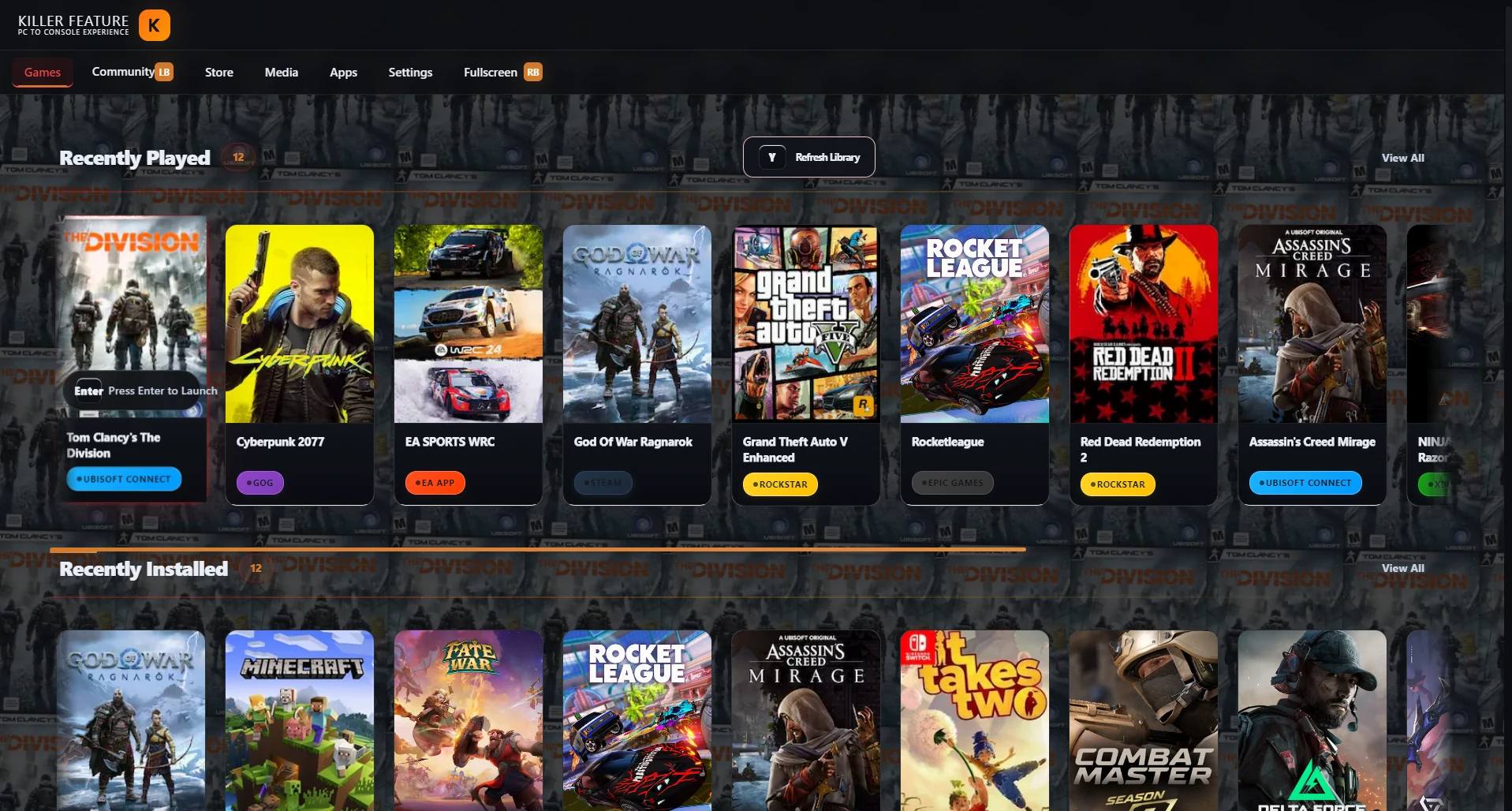
หลังจากเพิ่มและ scan library สำเร็จ games ของคุณจะปรากฏใน Games tab ขึ้นอยู่กับโครงสร้าง library ของคุณ โดยอาจพบได้ใน sections เช่น Recently Installed และ All Games
ควรเพิ่ม library แบบ manually เมื่อไหร่?
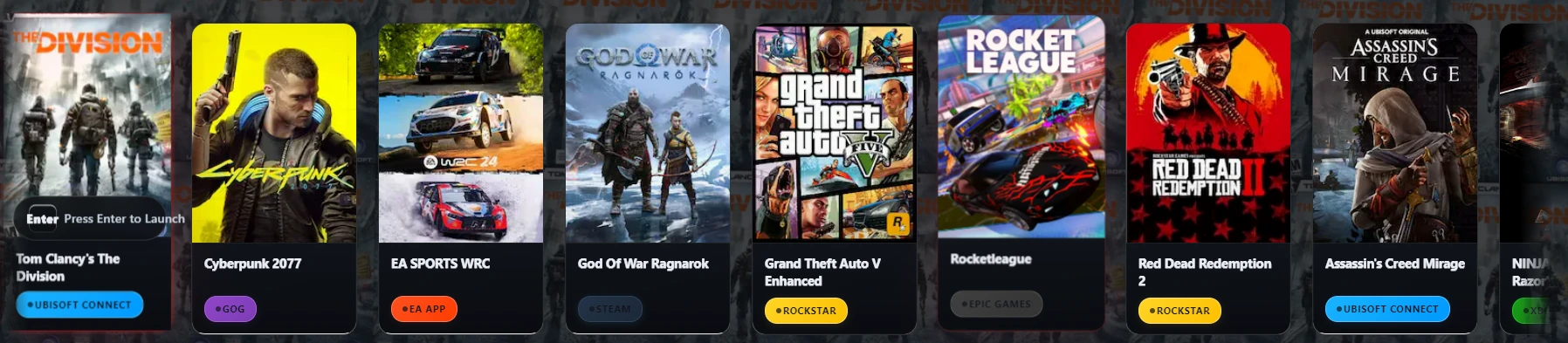
คุณควรเพิ่ม library แบบ manually เมื่อ games ของคุณอยู่ใน custom folder เมื่อคุณใช้ emulator หรือเมื่อ Killer Feature ไม่สามารถ detect platform ได้อัตโนมัติ วิธีนี้เหมาะสำหรับ PlayStation, Xbox, Nintendo libraries บางส่วน และ local PC games ที่ไม่ได้เชื่อมกับ automatic detection platform
- Steam
- Epic Games
- GOG
- EA App
- Rockstar Games
- Xbox Game Pass
- Ubisoft Connect
เปิด Libraries section
- เปิด Killer Feature app
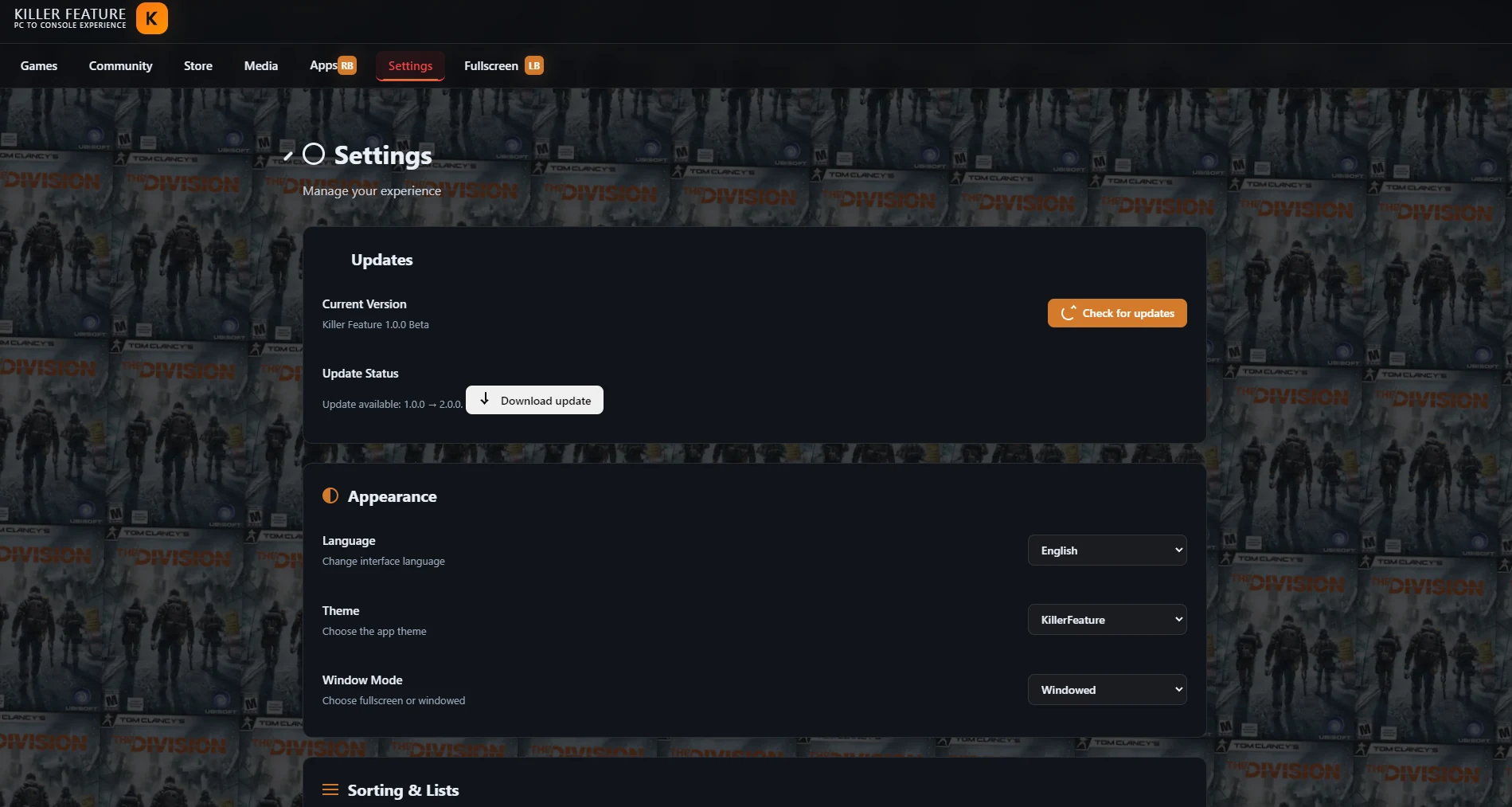
- จาก navigation bar ด้านบน ไปที่ Settings tab
- เลื่อนลงใน Settings page จนกว่าจะพบ Libraries section
- กด Add library เพื่อเริ่มเพิ่ม game library ใหม่
Libraries section ใน Settings
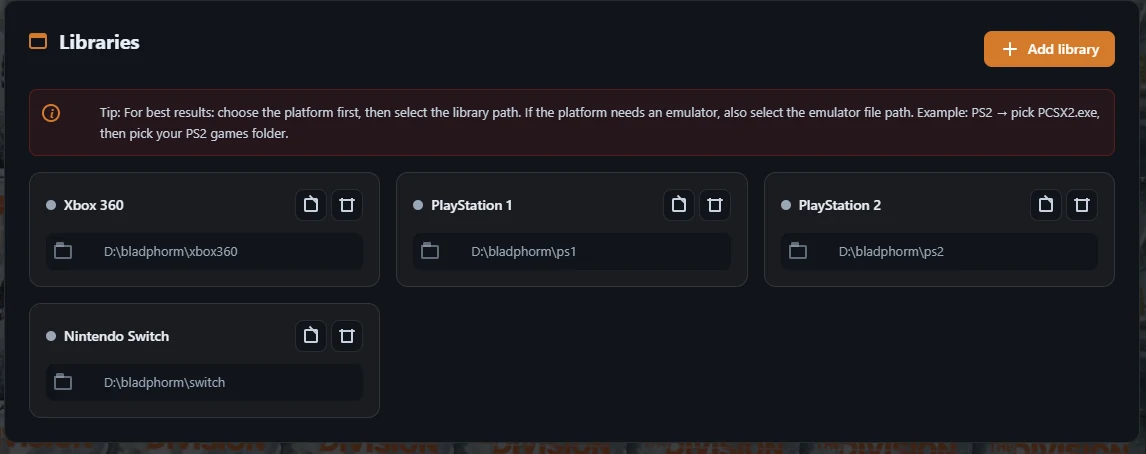
ใน Libraries section คุณสามารถดู libraries ทั้งหมดที่เพิ่มไว้แล้วได้ คุณสามารถเพิ่ม library ใหม่ เปลี่ยน existing paths ลบ library ที่ไม่ต้องใช้แล้ว หรือ scan library ใหม่หลังจาก folder content เปลี่ยนแปลง
เพิ่ม game library ใหม่
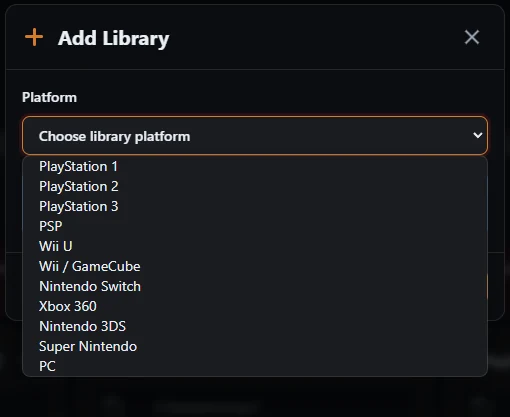
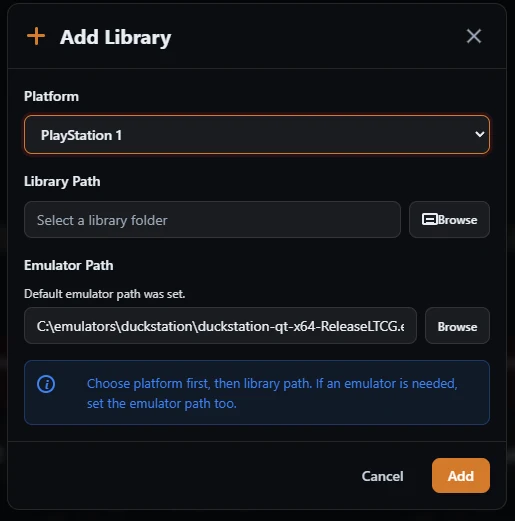
เมื่อกด Add library จะมี window แยกสำหรับเพิ่ม library เปิดขึ้น ใน window นี้คุณจะเลือก platform ตั้งค่า game folder path และเพิ่ม emulator path หาก platform นั้นต้องใช้ emulator เพื่อ run games
- เปิด Platform list แล้วเลือก platform ที่เหมาะกับ library ของคุณ เช่น PlayStation 1, PlayStation 2, Nintendo Switch, Xbox 360 หรือ PC
- กด Browse ข้าง Library Path จากนั้นเลือก folder ที่มี games ของ platform นั้น
- หาก platform ต้องใช้ emulator ให้ตรวจสอบว่า Emulator Path ถูกตั้งค่าอย่างถูกต้อง หาก emulator ถูก install จากใน Killer Feature บางครั้ง path อาจถูกกรอกให้อัตโนมัติ
- หลังจาก confirm platform, folder และ paths ทั้งหมดแล้ว กด Add เพื่อเพิ่ม library และเริ่ม scan
เลือก platform และ library paths
ใน Add Library window ให้เลือก platform ก่อน จากนั้นตั้งค่า game folder ผ่าน Library Path หาก platform ต้องพึ่ง emulator ให้ตรวจสอบว่า Emulator Path ชี้ไปยัง emulator file ที่ถูกต้องก่อนกด Add
Emulator path
เมื่อเลือก platform ที่ต้องใช้ emulator หาก emulator ถูก install จาก Apps tab ใน Killer Feature แล้ว emulator path อาจแสดงอัตโนมัติ หาก path ไม่แสดง คุณสามารถกด Browse แล้วเลือก emulator executable file จาก device ของคุณแบบ manually ได้
Install emulators จาก Killer Feature
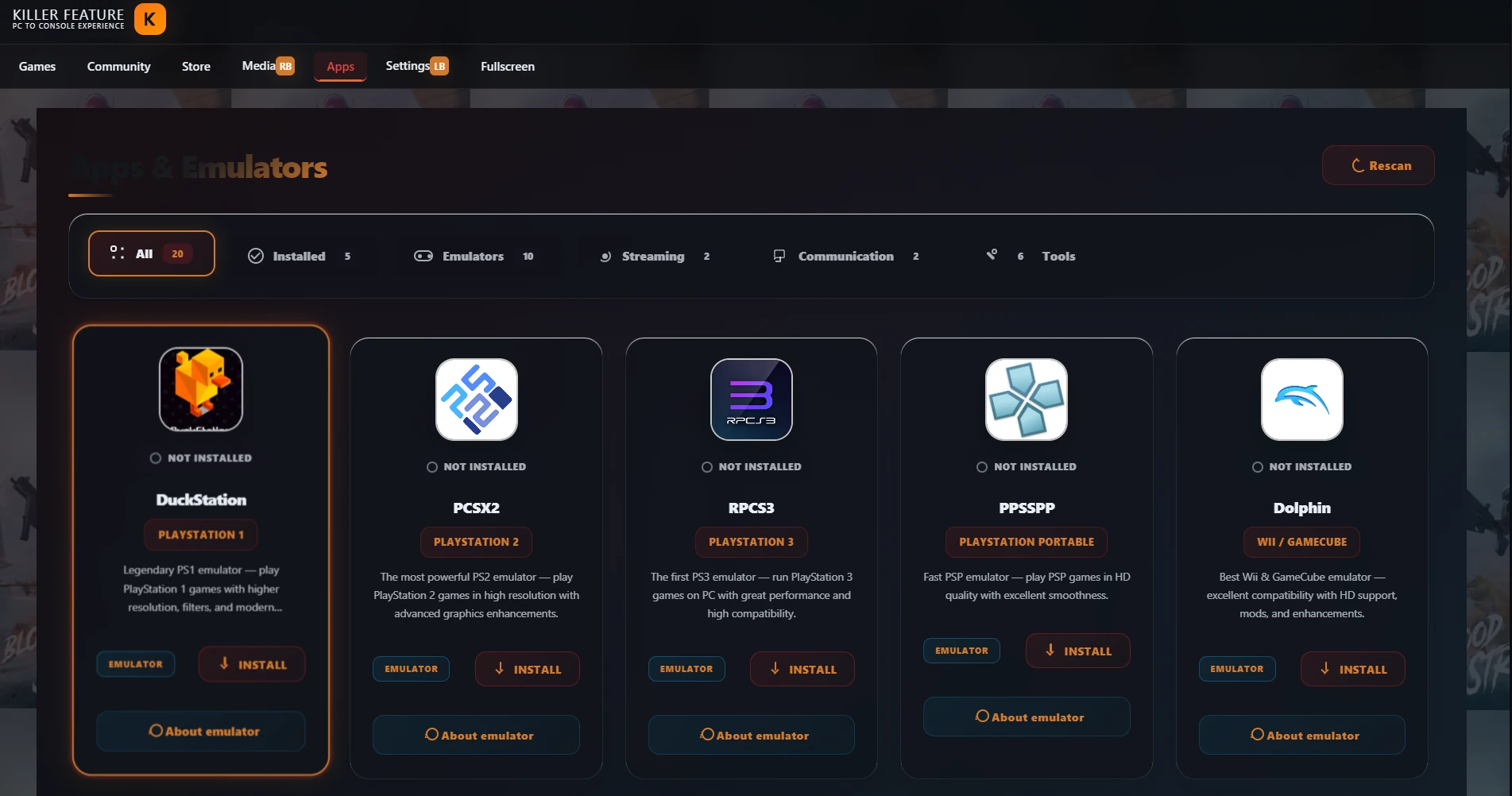
หากยังไม่ได้ install emulator บน device ของคุณ ให้เปิด Apps & Emulators tab แล้ว install emulator ที่เหมาะกับ platform ที่ต้องการเพิ่ม หลังจาก install แล้วกลับไปที่ Add Library เลือก platform และ emulator path อาจแสดงอัตโนมัติ
เลือก game folder
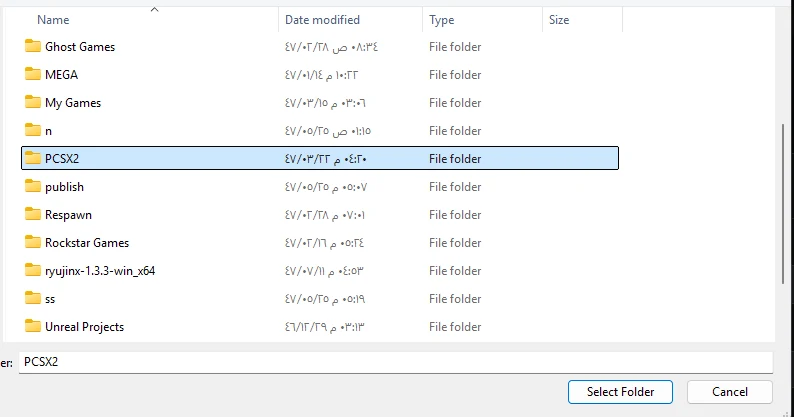
เมื่อกด Browse ข้าง Library Path จะเปิด folder picker window เลือกเฉพาะ folder ที่มี games ของ platform ที่เลือก แล้วกด Select Folder
ตรวจสอบ paths ก่อนเพิ่ม
หลังจากเลือก game folder แล้ว ให้ตรวจสอบว่า Library Path ชี้ไปยัง folder ที่ถูกต้อง หาก platform ต้องใช้ emulator ให้ตรวจสอบด้วยว่า Emulator Path ชี้ไปยัง emulator file ที่ถูกต้อง จากนั้นกด Add

เกิดอะไรขึ้นหลังจากเพิ่ม library?
หลังจากกด Add Killer Feature จะเริ่ม scan library อัตโนมัติ App จะอ่าน folder content พยายามระบุ games จัดระเบียบ แล้วเพิ่มเข้าไปใน game library ภายใน app
- รอจนกว่า library scan จะเสร็จสมบูรณ์
- กลับไปที่ Games tab
- Games ใหม่จะปรากฏใน Recently Installed section
- Games เหล่านั้นจะปรากฏใน All Games พร้อม platform badge ที่คุณเลือกไว้ด้วย
Games แสดงใน Games tab
หลังจากเพิ่มและ scan library แล้ว ให้กลับไปที่ Games tab games ของคุณจะแสดงใน Recently Installed และ All Games พร้อม platform badge ที่เลือกตอนเพิ่ม library
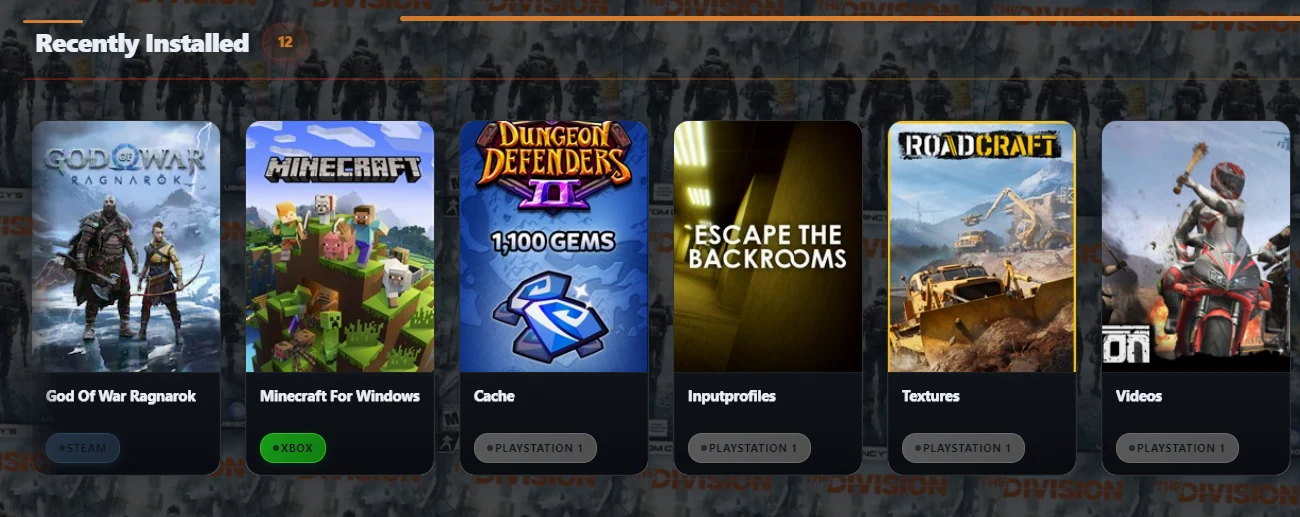
ตัวอย่างสั้น
หาก PlayStation 1 games ของคุณอยู่ใน folder ชื่อ PS1 ให้เลือก PlayStation 1 จาก Platform list จากนั้นกด Browse ข้าง Library Path แล้วเลือก game folder หาก DuckStation ถูก install จาก Killer Feature แล้ว emulator path มีโอกาสแสดงอัตโนมัติ จากนั้นกด Add
หาก games ไม่แสดง
- ตรวจสอบว่าคุณเลือก platform ที่ถูกต้องจาก Platform list
- ตรวจสอบว่า Library Path ชี้ไปยัง game folder ที่ถูกต้อง
- ตรวจสอบว่า folder ไม่มี games หรือ files จาก platform อื่น
- หาก platform ต้องใช้ emulator ให้ตรวจสอบ Emulator Path หรือ install emulator จาก Apps tab
- หลังจากเปลี่ยน folder content ให้ใช้ Refresh Library หรือ Rescan เพื่อ scan library อีกครั้ง
Video guide
ดู video guide สั้น ๆ ที่แสดงวิธีเพิ่ม game library เลือก platform ตั้งค่า game path และเชื่อมต่อกับ emulator ใน Killer Feature
คำถามที่พบบ่อย
Emulator path แสดงอัตโนมัติหรือไม่?
ใช่ หาก emulator ถูก install จาก Killer Feature path ของมันอาจถูก set อัตโนมัติเมื่อคุณเลือก platform ที่ตรงกัน
ฉันเลือก emulator แบบ manually ได้ไหม?
ได้ หาก emulator path ไม่แสดงอัตโนมัติ ให้กด Browse ข้าง Emulator Path แล้วเลือก emulator executable file จาก device ของคุณ
emulators บางตัวต้องใช้ BIOS, firmware, keys หรือ system files หรือไม่?
ใช่ emulators บางตัวอาจต้องใช้ setup เพิ่มเติม เช่น BIOS, firmware, keys หรือ original system files เพื่อให้ games ทำงานได้ถูกต้อง Killer Feature ไม่ได้ให้ files เหล่านี้ แต่ช่วยให้คุณเข้าใจว่าโดยปกติ files เหล่านี้ถูก configure ที่ไหนผ่าน emulator setup guide
เปิด emulator setup guideเก็บหลาย platforms ไว้ใน folder เดียวได้ไหม?
ไม่แนะนำ ควรใช้ folder แยกสำหรับแต่ละ platform เพื่อหลีกเลี่ยง wrong game detection, cover images ผิด หรือ mixed results
เพิ่ม local PC games ได้ไหม?
ได้ หากคุณมี local PC games ที่ไม่ได้เชื่อมกับ automatic detection platform ให้เลือก PC ตอนเพิ่ม library