
什麼是 Library management?
Library management 是你將自己的 game folders 新增到 Killer Feature 的 section。它適用於 local PC games、emulator games,以及無法自動 detect 的 platforms。新增 library 後,Killer Feature 會 scan folder、讀取 games、organize 它們,並嘗試匹配合適的 cover images。
Games tab
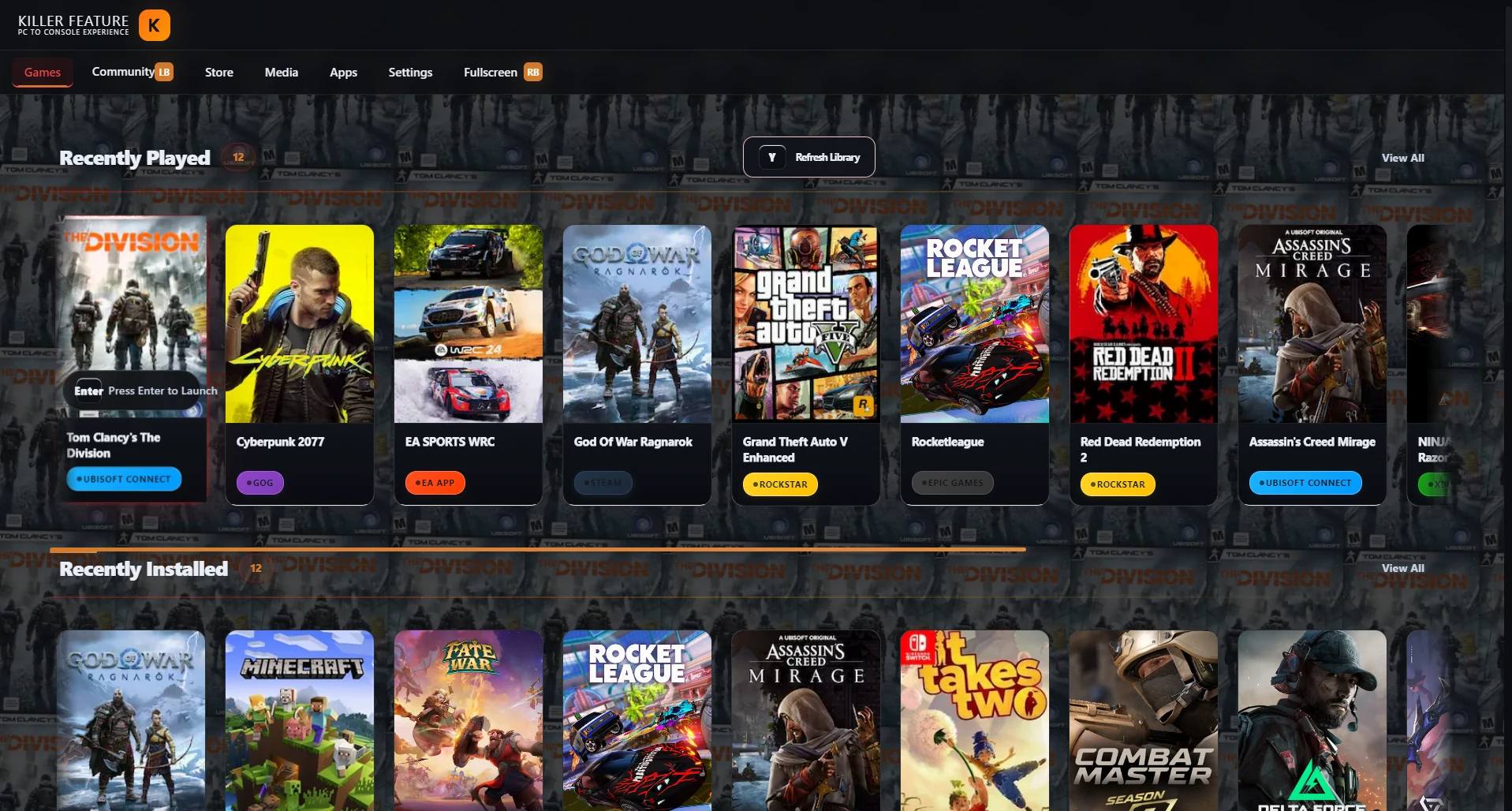
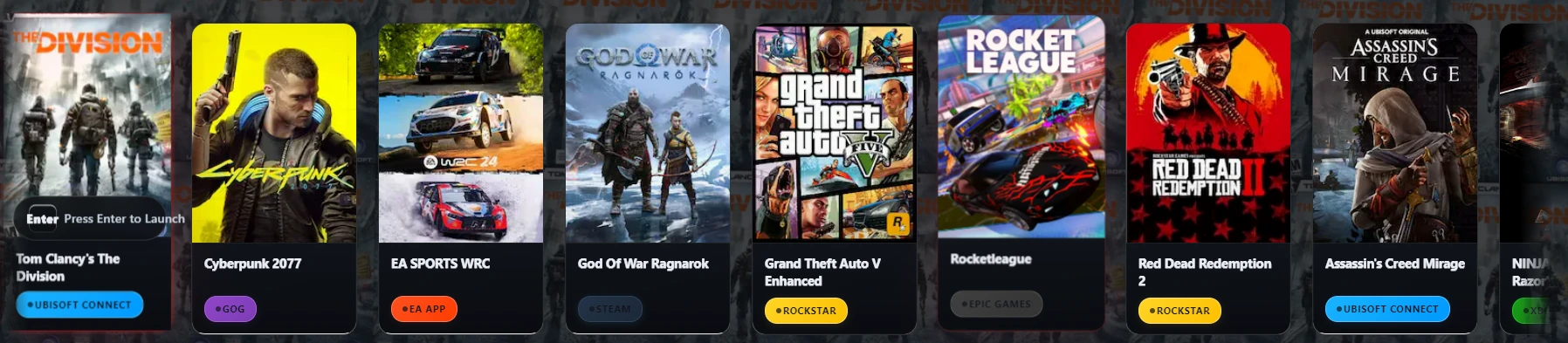
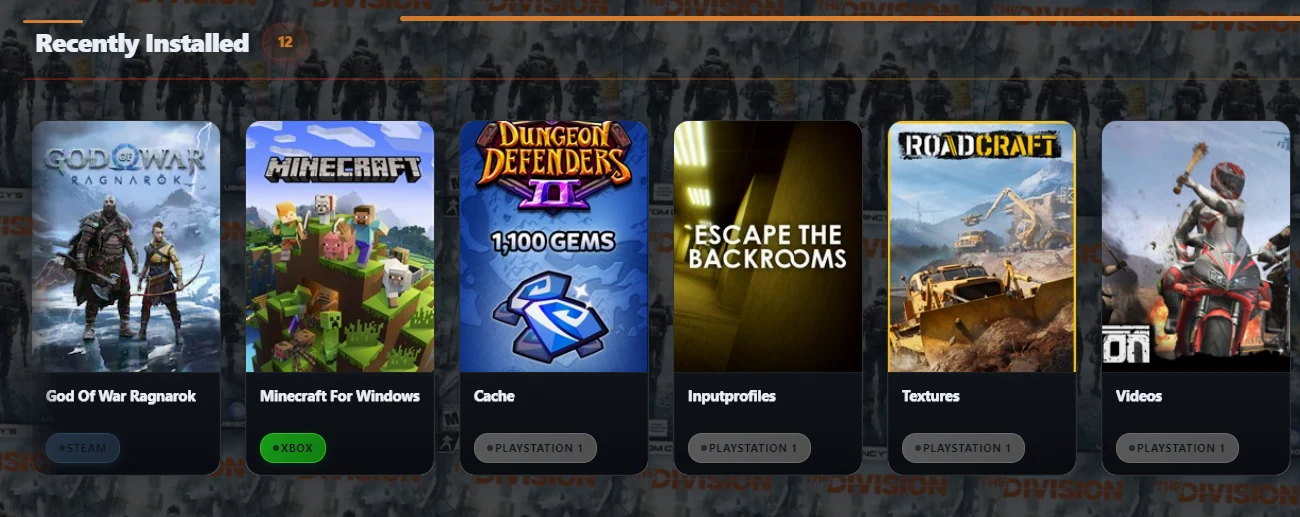
Library 成功新增並 scan 後,你的 games 會顯示在 Games tab 中。依照你的 library 結構,你可以在 Recently Installed 和 All Games 等 sections 中找到它們。
什麼時候需要 manually 新增 library?
如果你的 games 儲存在 custom folder 中、你正在使用 emulator,或 Killer Feature 無法自動 detect platform,就需要 manually 新增 library。這對部分 PlayStation、Xbox、Nintendo libraries,以及未連接到 automatic detection platform 的 local PC games 很有用。
- Steam
- Epic Games
- GOG
- EA App
- Rockstar Games
- Xbox Game Pass
- Ubisoft Connect
開啟 Libraries section
- 開啟 Killer Feature app。
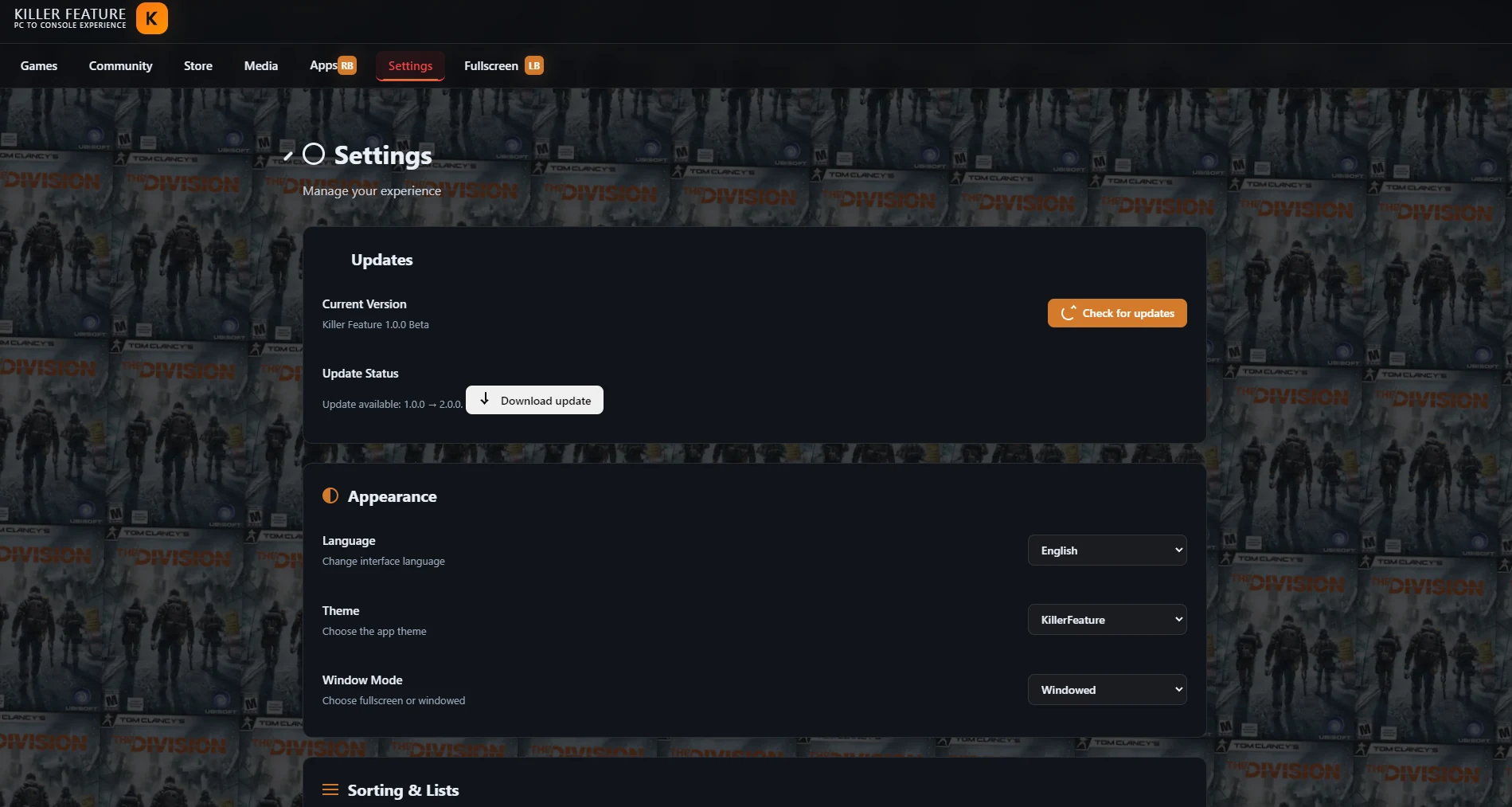
- 從上方 navigation bar 前往 Settings tab。
- 在 Settings page 中向下 scroll,直到看到 Libraries section。
- 點擊 Add library,開始新增新的 game library。
Settings 中的 Libraries section
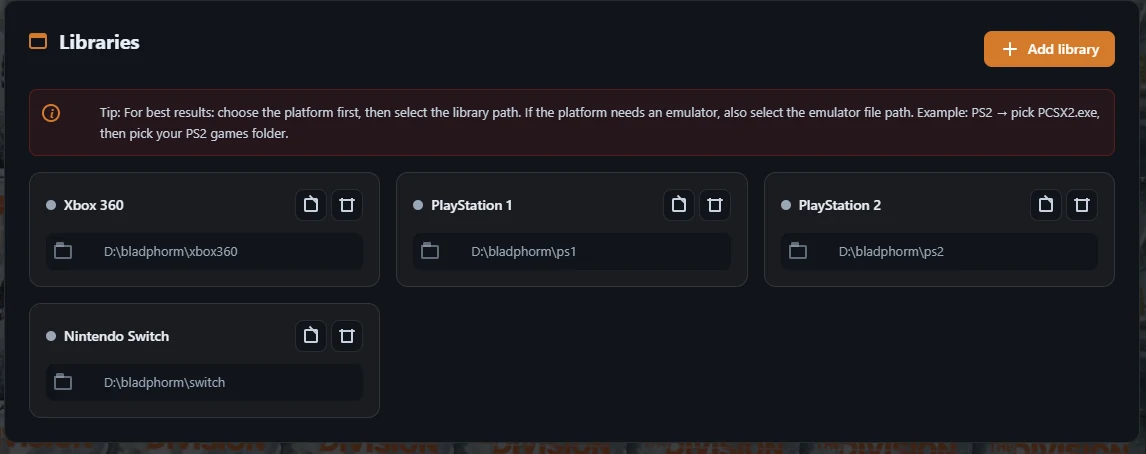
在 Libraries section 中,你可以看到已經新增的所有 libraries。你可以新增新的 library、修改 existing paths、移除不再需要的 library,或在 folder content 變更後重新 scan library。
新增新的 game library
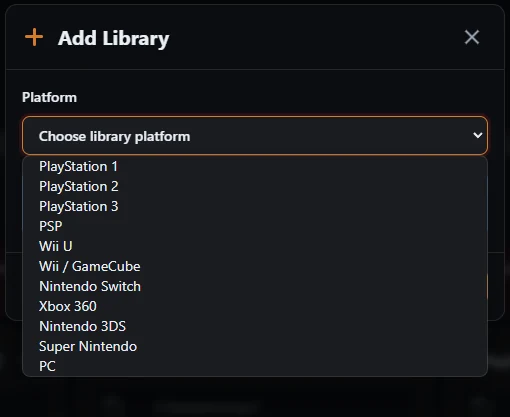
點擊 Add library 後,會開啟一個用於新增 library 的獨立 window。在這個 window 中,你需要選擇 platform、設定 game folder path,並在該 platform 需要 emulator 來 run games 時新增 emulator path。
- 開啟 Platform list,並為你的 library 選擇合適的 platform,例如 PlayStation 1、PlayStation 2、Nintendo Switch、Xbox 360 或 PC。
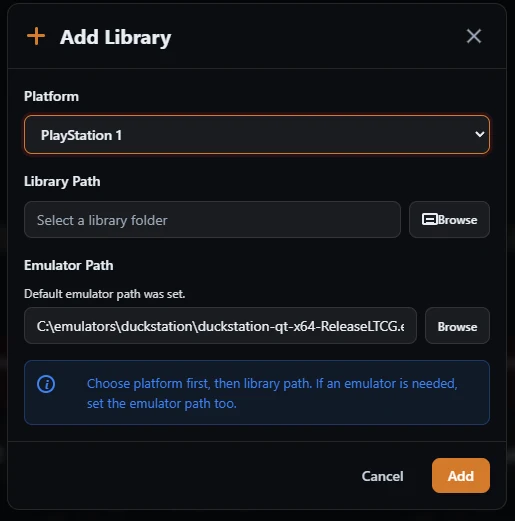
- 點擊 Library Path 旁邊的 Browse,然後選擇包含該 platform games 的 folder。
- 如果 platform 需要 emulator,請確認 Emulator Path 已正確 set。如果 emulator 是從 Killer Feature 內 install 的,某些情況下 path 可能會自動填入。
- 確認 platform、folder 和所有 paths 後,點擊 Add 新增 library 並開始 scan。
選擇 platform 和 library paths
在 Add Library window 中,先選擇 platform,然後透過 Library Path 設定 game folder。如果 platform 依賴 emulator,請在點擊 Add 前確認 Emulator Path 指向正確的 emulator file。
Emulator path
當你選擇需要 emulator 的 platform 時,如果 emulator 已透過 Killer Feature 中的 Apps tab install,emulator path 可能會自動顯示。如果 path 沒有顯示,你可以點擊 Browse,並從 device 中 manually 選擇 emulator executable file。
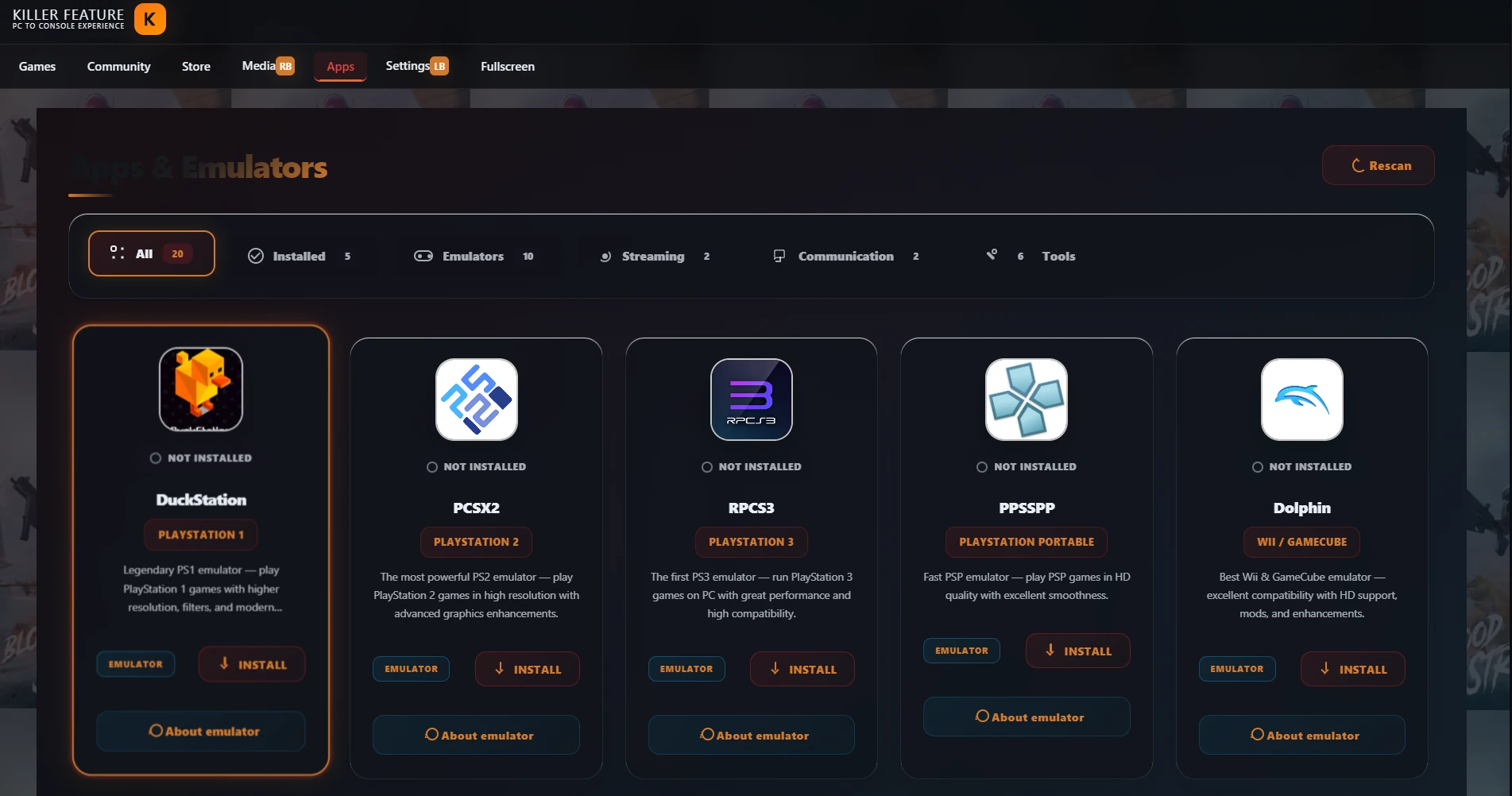
從 Killer Feature install emulators
如果 emulator 尚未 install 到你的 device,請開啟 Apps & Emulators tab,並 install 適合你要新增的 platform 的 emulator。Install 完成後返回 Add Library,選擇 platform,emulator path 可能會自動顯示。
選擇 game folder
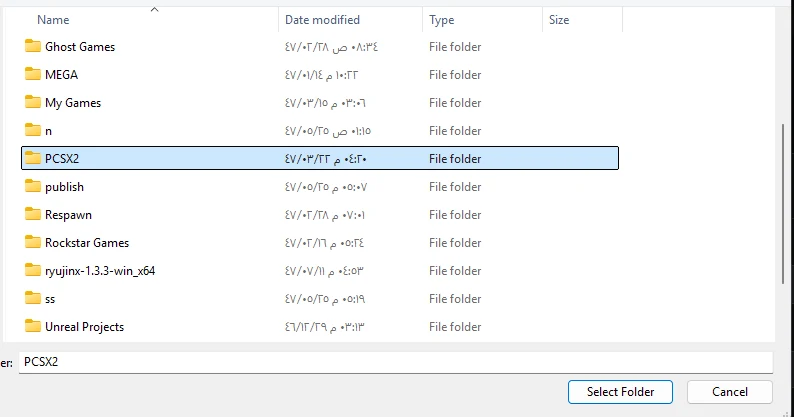
點擊 Library Path 旁邊的 Browse 後,會開啟 folder picker window。只選擇包含所選 platform games 的 folder,然後點擊 Select Folder。
新增前檢查 paths
選擇 game folder 後,請確認 Library Path 指向正確的 folder。如果 platform 需要 emulator,也要確認 Emulator Path 指向正確的 emulator file,然後點擊 Add。

新增 library 後會發生什麼?
點擊 Add 後,Killer Feature 會自動開始 library scan。App 會讀取 folder content,嘗試識別 games,organize 它們,然後將它們新增到 app 內的 game library 中。
- 等待 library scan 完成。
- 返回 Games tab。
- 新的 games 會顯示在 Recently Installed section 中。
- 它們也會帶著你選擇的 platform badge 顯示在 All Games 中。
Games 在 Games tab 中顯示
Library 新增並 scan 後,返回 Games tab。你的 games 會帶著新增 library 時選擇的 platform badge,顯示在 Recently Installed 和 All Games 中。
快速範例
如果你的 PlayStation 1 games 位於名為 PS1 的 folder 中,請從 Platform list 選擇 PlayStation 1。然後點擊 Library Path 旁邊的 Browse,選擇 game folder。如果 DuckStation 是透過 Killer Feature install 的,emulator path 很可能會自動顯示。然後點擊 Add。
如果 games 沒有顯示
- 確認你已從 Platform list 選擇正確的 platform。
- 檢查 Library Path 是否指向正確的 game folder。
- 確認 folder 中沒有來自其他 platform 的 games 或 files。
- 如果 platform 需要 emulator,請檢查 Emulator Path,或透過 Apps tab install emulator。
- Folder content 變更後,使用 Refresh Library 或 Rescan 重新 scan library。
Video guide
觀看簡短的 video guide,了解如何在 Killer Feature 中新增 game library、選擇 platform、設定 game path,並將它連接到 emulator。
常見問題
Emulator path 會自動顯示嗎?
會。如果 emulator 是透過 Killer Feature install 的,當你選擇對應的 platform 時,它的 path 可能會自動 set。
我可以 manually 選擇 emulator 嗎?
可以。如果 emulator path 沒有自動顯示,請點擊 Emulator Path 旁邊的 Browse,然後從你的 device 中選擇 emulator executable file。
某些 emulators 是否需要 BIOS、firmware、keys 或 system files?
是的。某些 emulators 可能需要額外 setup,例如 BIOS、firmware、keys 或 original system files,games 才能正確運作。Killer Feature 不提供這些 files,但會透過 emulator setup guide 協助你了解它們通常在哪裡 configure。
開啟 emulator setup guide可以把多個 platforms 放在同一個 folder 中嗎?
不建議這樣做。最好為每個 platform 使用單獨的 folder,以避免 wrong game detection、錯誤的 cover images 或 mixed results。
可以新增 local PC games 嗎?
可以。如果你有未連接到 automatic detection platform 的 local PC games,可以在新增 library 時選擇 PC。